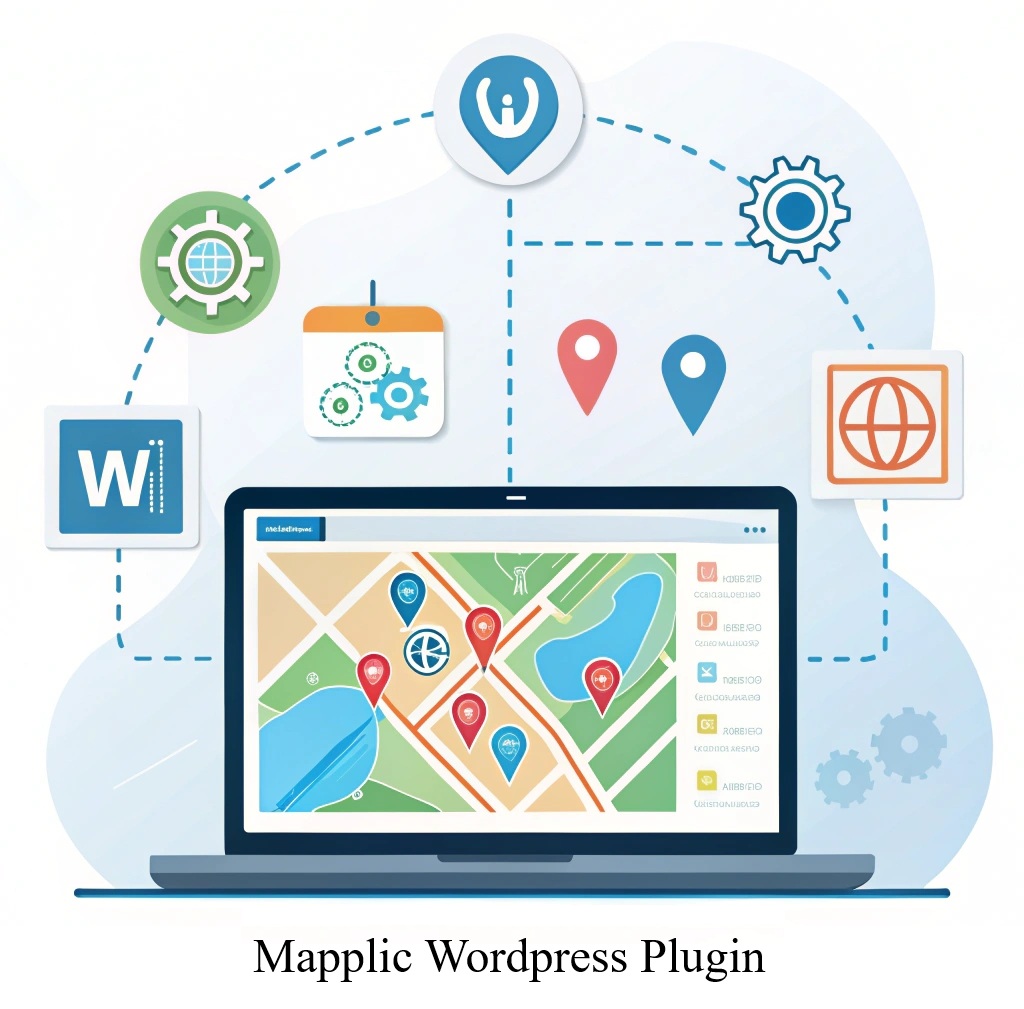
If you are looking to create interactive, clickable, and professional maps on your WordPress site, the Mapplic plugin is one of the best options available. This plugin allows you to display custom maps, floor plans, geographical locations, and even internal building routes with a modern and fully responsive design.
In this article from HAMWebsite, we provide a specialized guide on how to install, configure, and use the Mapplic plugin so you can create engaging and functional maps without needing to code.
📌 What is the Mapplic Plugin?
Mapplic is a professional WordPress plugin for creating interactive maps. It supports custom images, geographical maps, and SVG files. Users can click on different points on the map, view information, zoom in and out, and navigate, providing a dynamic and engaging user experience.
🧩 Key Benefits of the Mapplic Plugin
Support for global and custom maps
Ability to add unlimited interactive pins (points) or regions
Fully responsive and mobile/tablet-friendly
Includes a fast search feature within the map
Capability to display information, images, links, and even videos
Compatible with multilingual and right-to-left (RTL) websites
🛠️ How to Install the Mapplic Plugin in WordPress
Step 1: Download the Plugin
From a trusted source such as:
The official Mapplic website (mapplic.com)
WordPress marketplaces like JAKET or RTL Theme (for the Persian version)
Purchase the plugin and download the ZIP file.
Step 2: Installing the Plugin
Log in to your WordPress dashboard.
Go to Plugins > Add New.
Click on “Upload Plugin” and upload the ZIP file.
After installation, click the “Activate” button.
🧭 Creating Your First Map in Mapplic
Step 1: Create a New Map
From the WordPress admin menu, go to Mapplic > Add New.
Enter a name for your map.
Select the map type.
Adjust the default zoom level and map position.
Click the Save Map button.
Map Types:
Custom Map – for floor plans or custom image maps
Geographical Map – for country or world maps
Step 2: Upload Image or Select Map
If you chose Custom Map, upload your custom image (e.g., a floor plan or building layout) in JPG, PNG, or SVG format.
If you selected Geographical Map, pick a built-in map from the list (e.g., World, Europe, Iran).
After uploading or selecting your map, adjust its size and alignment if necessary.
Then, click Save to apply the changes.
📍 Adding Pins and Areas in Mapplic
Once your map is set up, you can add interactive elements like pins (points) and areas to make it dynamic and informative:
➕ To Add a Pin (Point):
Go to your map editor.
Click on “Add New Location”.
Select the spot on the map where you want to place the pin.
Fill in the details:
Title (e.g., Main Office)
Description (optional: address, info, etc.)
Image, Link, or Video (optional)
Choose icon and color
Click Save.
🔲 To Add an Area:
Choose “Draw Area” from the map editor.
Use your mouse to draw a shape (polygon) over the desired zone.
Add a name, description, and style for the area.
You can link the area to content or display info on click.
Click Save Area.
Both pins and areas can include animations, popups, links, or actions to create an engaging, interactive user experience.
⚙️ Advanced Settings in Mapplic
In Mapplic, you can customize your interactive map further with advanced options to enhance functionality and user experience:
Zoom Controls: Enable or disable zoom buttons and set minimum/maximum zoom levels.
Map Navigation: Allow or restrict panning and dragging of the map.
Tooltip Customization: Customize the style and behavior of tooltips that appear on pins or areas.
Search Functionality: Enable a search box for quick location lookup on the map.
Marker Animation: Add animations to pins for better visual effect.
Layer Management: Manage multiple map layers to show different data or map types.
Responsive Settings: Adjust how the map behaves on different screen sizes.
Custom CSS & JS: Add your own code snippets for deeper customization.
Use these settings to tailor your map exactly to your website’s needs and create a smooth, engaging interactive experience.
🔗 How to Display the Map on Your Website
After creating and customizing your map in Mapplic, follow these steps to embed it on your WordPress site:
Copy the Shortcode:
In the Mapplic dashboard, find your created map.
Copy the shortcode provided for that map (e.g., [mapplic id="1"]).
Paste the Shortcode:
Go to the page or post where you want the map to appear.
Paste the shortcode into the WordPress editor.
Publish or Update:
Save, publish, or update your page/post.
View Your Map:
Visit the page on your site to see the interactive map in action.
You can also use the shortcode in widgets or template files to display the map anywhere on your site.
🎯 Conclusion
Mapplic is a powerful and user-friendly plugin for creating interactive, customizable maps on your WordPress website. With easy setup, versatile features, and responsive design, it enhances user experience and helps you showcase locations, floor plans, and geographic data effectively. By following the installation and configuration steps, you can create engaging maps without any coding skills and enrich your site’s functionality.
🚀 Special Services of HAMWebsite
Se desideri implementare mappe interattive con Mapplic sul tuo sito web, il team di progettazione e sviluppo di Hamwebsite è pronto a offrirti servizi esperti di installazione, configurazione e personalizzazione di questo plugin.
📞 Contattaci oggi stesso per una consulenza gratuita!