Step-by-Step Guide to Adding a Logo to Your WordPress Website
Having a professional and visible logo on your WordPress website is one of the most important factors for branding and building user trust. A logo not only represents your brand identity but also plays a key role in SEO and user experience. In this article from HAMWebsite, you’ll learn how to easily and professionally add a logo to your WordPress site.
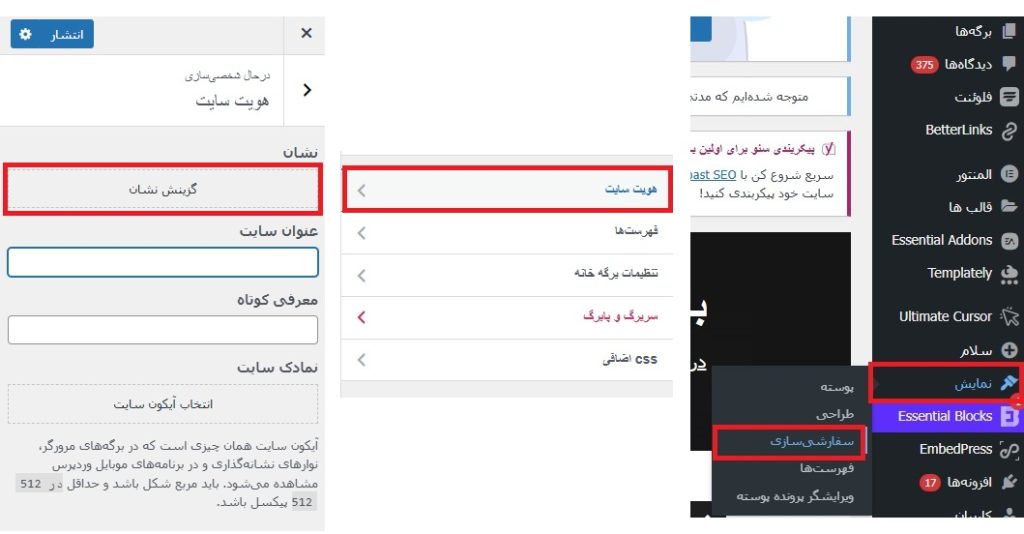
🖼️ Method 1: Add a Logo from Your WordPress Theme Settings
Most modern WordPress themes, such as Astra, OceanWP, and GeneratePress, include a built-in option to add a logo.
🔸 Note: Always back up your theme files before making any changes.
📐 Recommended Logo Size and Format
For optimal display on all devices, use the following dimensions and formats:
Logo Type
Recommended Size
Suitable Format
Main Site Logo
250 × 80 pixels
Transparent PNG
Favicon Logo
512 × 512 pixels
PNG or ICO
🧠 SEO and Branding Tips Related to Logo
Choose a meaningful name for your logo file in Persian or English. Example: hamwebsite-logo.png
Don’t forget the alt tag. This helps improve image SEO.
Include your logo in the site Schema. If you use plugins like Yoast SEO or Rank Math, you can register your brand logo in the settings so it appears in Google search results.
Check your logo on the mobile version. Many themes allow you to set a separate logo specifically for mobile devices.
🎯 Conclusion
Adding a logo to your WordPress site is simple yet highly effective. By following the tips above, you can strengthen your brand’s visual identity and enhance your site’s user experience.